


Computer buffs ..Help needed with outlook problem


Thread Starter
1st to 200 without NOS
iTrader: (2)
Joined: May 2003
Posts: 12,304
Likes: 121
From: Birmingham
 Computer buffs ..Help needed with outlook problem
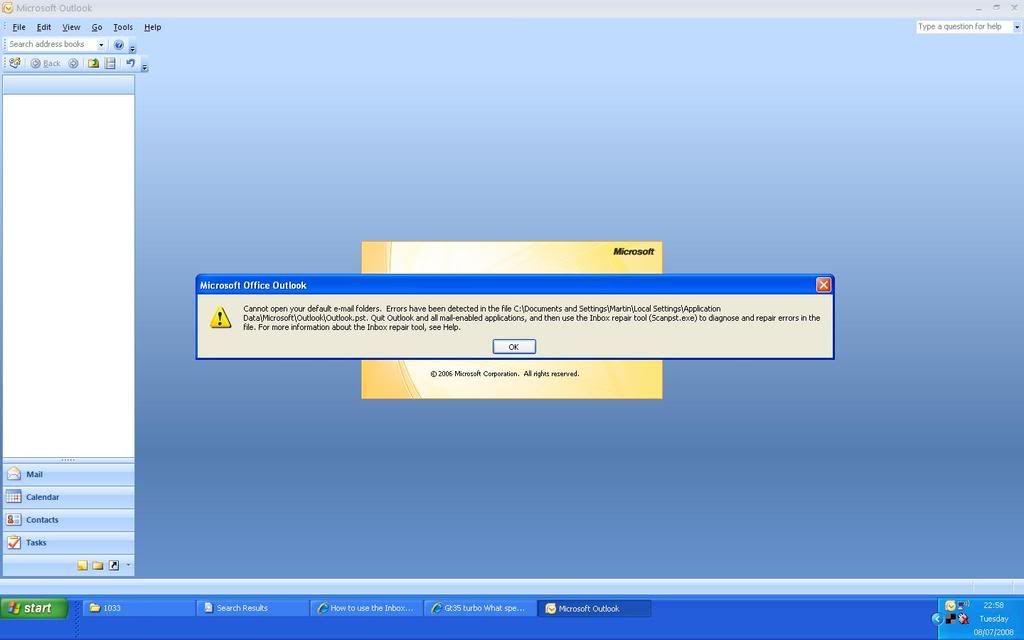
When I click on my email (Outlook) I get the message below, I have tried using the inbox repair tool but no errors found.. Properly mad with it now, anyone know what's up?

Thread Starter
1st to 200 without NOS
iTrader: (2)
Joined: May 2003
Posts: 12,304
Likes: 121
From: Birmingham


Martin, system restore wont fix that.
Close Outlook and then click "Start" and "run"
Type the name of that .exe file into the run box and see if the inbox fixer sorts your problem.
Looks like some sort of outlook data file corruption.
Stu
Close Outlook and then click "Start" and "run"
Type the name of that .exe file into the run box and see if the inbox fixer sorts your problem.
Looks like some sort of outlook data file corruption.
Stu

polly_x - hes tried that already mate to no avail.
Martin - can you try setting up a new PST file for your emails then use the import option to try and import them from that old PST file?
Martin - can you try setting up a new PST file for your emails then use the import option to try and import them from that old PST file?
Thread Starter
1st to 200 without NOS
iTrader: (2)
Joined: May 2003
Posts: 12,304
Likes: 121
From: Birmingham
 I'm not brilliant with this sort of thing but really need this sorting as I have loads of emails to reply to.
Hmmmm - had a feeling you were going to say that!! I could do this in about 2mins flat if I was next to the PC! LOL!
OK........here try this - type this in the START - RUN box 'C:\DOCUMENTS AND SETTINGS\MARTIN\Local Settings\Application Data\Microsoft\Outlook' and then click on OK. This should bring up a folder where you will be able to see the OUTLOOK.PST file - now you've done that MOVE it onto your desktop for later use! Make sure it doesnt exist at that location anymore!!
Now try opening up Outlook again - it may give you an error message to start with stating it cant find the data store etc - with any luck it 'should' create a new data file if you OK the error messages & will let you open up & start using Outlook again - albeit with your emails missing....temporarily anyway!!
Report back once you've done this...
OK........here try this - type this in the START - RUN box 'C:\DOCUMENTS AND SETTINGS\MARTIN\Local Settings\Application Data\Microsoft\Outlook' and then click on OK. This should bring up a folder where you will be able to see the OUTLOOK.PST file - now you've done that MOVE it onto your desktop for later use! Make sure it doesnt exist at that location anymore!!
Now try opening up Outlook again - it may give you an error message to start with stating it cant find the data store etc - with any luck it 'should' create a new data file if you OK the error messages & will let you open up & start using Outlook again - albeit with your emails missing....temporarily anyway!!
Report back once you've done this...
Last edited by Lee_R21Turbo; Jul 8, 2008 at 10:42 PM.
Trending Topics

Advanced PassionFord User
Joined: Apr 2004
Posts: 2,385
Likes: 0
From: Naaaaarch
Go into Control Panel then Mail
click E-Mail Accounts button
Select View or change existing.... then hit next
Somewhere near the bottom should be a New Outlook Data File button, click it
Select Office Outlook Personal Folders File (.pst) then hit Ok
Type a filename for the pst then hit ok
Another window will pop up asking about encryption and passwords blah blah, type a name in the box at the top (e.g Personal Folder2) then click ok. You should now be back to the window with the New Outlook Data File button on it.
From the dropdown box next to the New Outlook Data File button select your new Personal Folder (Personal Folder2) then click finish.
click E-Mail Accounts button
Select View or change existing.... then hit next
Somewhere near the bottom should be a New Outlook Data File button, click it
Select Office Outlook Personal Folders File (.pst) then hit Ok
Type a filename for the pst then hit ok
Another window will pop up asking about encryption and passwords blah blah, type a name in the box at the top (e.g Personal Folder2) then click ok. You should now be back to the window with the New Outlook Data File button on it.
From the dropdown box next to the New Outlook Data File button select your new Personal Folder (Personal Folder2) then click finish.
What you can then try is importing your old mail from the original pst.....
In Outlook click File then Import and Export
Select Import from another program or file then hit next
Select Personal Folder File (.pst) then hit next
Click Browse and find the .pst file the error message was talking about, click Ok then Click Next
Assuming Outlook can read that .pst (it may not given the error before) you should get a list of your old folders, select Personal Folder at the top and make sure Include subfolders is ticked. Underneath select Inport items into the same folder in: then chose your new personal folder file (Personal Folders2).
cross fingers then click finish.
Select Import from another program or file then hit next
Select Personal Folder File (.pst) then hit next
Click Browse and find the .pst file the error message was talking about, click Ok then Click Next
Assuming Outlook can read that .pst (it may not given the error before) you should get a list of your old folders, select Personal Folder at the top and make sure Include subfolders is ticked. Underneath select Inport items into the same folder in: then chose your new personal folder file (Personal Folders2).
cross fingers then click finish.
Thread Starter
1st to 200 without NOS
iTrader: (2)
Joined: May 2003
Posts: 12,304
Likes: 121
From: Birmingham
Hmmmm - had a feeling you were going to say that!! I could do this in about 2mins flat if I was next to the PC! LOL!
OK........here try this - type this in the START - RUN box 'C:\DOCUMENTS AND SETTINGS\MARTIN\Local Settings\Application Data\Microsoft\Outlook' and then click on OK. This should bring up a folder where you will be able to see the OUTLOOK.PST file - now you've done that MOVE it onto your desktop for later use! Make sure it doesnt exist at that location anymore!!
Now try opening up Outlook again - it may give you an error message to start with stating it cant find the data store etc - with any luck it 'should' create a new data file if you OK the error messages & will let you open up & start using Outlook again - albeit with your emails missing....temporarily anyway!!
Report back once you've done this...
OK........here try this - type this in the START - RUN box 'C:\DOCUMENTS AND SETTINGS\MARTIN\Local Settings\Application Data\Microsoft\Outlook' and then click on OK. This should bring up a folder where you will be able to see the OUTLOOK.PST file - now you've done that MOVE it onto your desktop for later use! Make sure it doesnt exist at that location anymore!!
Now try opening up Outlook again - it may give you an error message to start with stating it cant find the data store etc - with any luck it 'should' create a new data file if you OK the error messages & will let you open up & start using Outlook again - albeit with your emails missing....temporarily anyway!!
Report back once you've done this...
Thread Starter
1st to 200 without NOS
iTrader: (2)
Joined: May 2003
Posts: 12,304
Likes: 121
From: Birmingham
Excellent....
Now follow these steps :-
How to import .pst file data into Outlook
Use the following steps to import a .pst) file into Outlook: 1.On the File menu, click Import And Export. If the menu item is not available, hover your pointer over the chevrons at the bottom of the menu, and then click Import and Export. 2.Click Import from another program or file., and then click Next. 3.Click Personal Folder File (.pst), and then click Next.4.Type the path and the name of the .pst file that you want to import (this is the OUTLOOK.PST file on your desktop), and then click Next.5.Select the top of the hierarchy to import everything, and then click Finish.
Let me know what you end up with after this - hopefully you will have all your emails back!!
Now follow these steps :-
How to import .pst file data into Outlook
Use the following steps to import a .pst) file into Outlook: 1.On the File menu, click Import And Export. If the menu item is not available, hover your pointer over the chevrons at the bottom of the menu, and then click Import and Export. 2.Click Import from another program or file., and then click Next. 3.Click Personal Folder File (.pst), and then click Next.4.Type the path and the name of the .pst file that you want to import (this is the OUTLOOK.PST file on your desktop), and then click Next.5.Select the top of the hierarchy to import everything, and then click Finish.
Let me know what you end up with after this - hopefully you will have all your emails back!!

Thread Starter
1st to 200 without NOS
iTrader: (2)
Joined: May 2003
Posts: 12,304
Likes: 121
From: Birmingham
You wont have lost anything....provided you've still got the old OUTLOOK.PST file on your desktop - or should I say you're in no worse position that what you were in about 45mins ago - infact you're in a better position because at least now you can send & recieve emails - its just historical emails that have currently gone AWOL....chop chop & try what I said....
Thread Starter
1st to 200 without NOS
iTrader: (2)
Joined: May 2003
Posts: 12,304
Likes: 121
From: Birmingham
Excellent....
Now follow these steps :-
How to import .pst file data into Outlook
Use the following steps to import a .pst) file into Outlook: 1.On the File menu, click Import And Export. If the menu item is not available, hover your pointer over the chevrons at the bottom of the menu, and then click Import and Export. 2.Click Import from another program or file., and then click Next. 3.Click Personal Folder File (.pst), and then click Next.4.Type the path and the name of the .pst file that you want to import (this is the OUTLOOK.PST file on your desktop), and then click Next.5.Select the top of the hierarchy to import everything, and then click Finish.
Let me know what you end up with after this - hopefully you will have all your emails back!!
Now follow these steps :-
How to import .pst file data into Outlook
Use the following steps to import a .pst) file into Outlook: 1.On the File menu, click Import And Export. If the menu item is not available, hover your pointer over the chevrons at the bottom of the menu, and then click Import and Export. 2.Click Import from another program or file., and then click Next. 3.Click Personal Folder File (.pst), and then click Next.4.Type the path and the name of the .pst file that you want to import (this is the OUTLOOK.PST file on your desktop), and then click Next.5.Select the top of the hierarchy to import everything, and then click Finish.
Let me know what you end up with after this - hopefully you will have all your emails back!!
Advanced PassionFord User
Joined: Apr 2004
Posts: 2,385
Likes: 0
From: Naaaaarch
You should be fine..
The only way you'll lose anything is if you overwrote your old pst file with the new one (gave it the same name and path) or your original pst is too corrupt to recover any data from.
The only way you'll lose anything is if you overwrote your old pst file with the new one (gave it the same name and path) or your original pst is too corrupt to recover any data from.
Sounds like your original data file is properly cunted then mate!! I take it a sensible chap like you takes regular daily backups?? If so then you can restore the PST file from this & you'll only of lost out on todays emails if you are lucky....otherwise you might be a tad stuck.
How big is the original PST file on your desktop?
How big is the original PST file on your desktop?
Thread Starter
1st to 200 without NOS
iTrader: (2)
Joined: May 2003
Posts: 12,304
Likes: 121
From: Birmingham
Sounds like your original data file is properly cunted then mate!! I take it a sensible chap like you takes regular daily backups?? If so then you can restore the PST file from this & you'll only of lost out on todays emails if you are lucky....otherwise you might be a tad stuck.
How big is the original PST file on your desktop?
How big is the original PST file on your desktop?
Well....least thats something - 1.3Gb is a bit big to be sending to me over email even zipped up it wouldnt go down to a reasonable size!! I was going to suggest me seeing if I could salvage anything from it if you sent it - although Ish is probably your man for this as hes closer.
Sorry I couldnt be of more help - but at least you can send/receive emails again.
Sorry I couldnt be of more help - but at least you can send/receive emails again.
Advanced PassionFord User
Joined: Apr 2004
Posts: 2,385
Likes: 0
From: Naaaaarch
As Lee says sounds stuffed. Restoring from backup will get you up and running quickest, make sure you copy the corrupt .pst somewhere before you restore, you can always try to recover from the corrupt pst at a later date if need be.
James
James
Thread Starter
1st to 200 without NOS
iTrader: (2)
Joined: May 2003
Posts: 12,304
Likes: 121
From: Birmingham
Well....least thats something - 1.3Gb is a bit big to be sending to me over email even zipped up it wouldnt go down to a reasonable size!! I was going to suggest me seeing if I could salvage anything from it if you sent it - although Ish is probably your man for this as hes closer.
Sorry I couldnt be of more help - but at least you can send/receive emails again.
Sorry I couldnt be of more help - but at least you can send/receive emails again.
Lloyd - yes I could providing all his firewall/router settings are setup for me to do that!!
Jamz - the PST file on Martins desktop is what hes backed up - Outlook 2007 has created a new Outlook.pst file in the default location.
Thread Starter
1st to 200 without NOS
iTrader: (2)
Joined: May 2003
Posts: 12,304
Likes: 121
From: Birmingham
Ah - well thats something - I wonder if it was scanning an older incorrect PST file then before - when its finished doing what its doing try importing it again!! Might just work that!!
Lloyd - yes I could providing all his firewall/router settings are setup for me to do that!!
Jamz - the PST file on Martins desktop is what hes backed up - Outlook 2007 has created a new Outlook.pst file in the default location.
Lloyd - yes I could providing all his firewall/router settings are setup for me to do that!!
Jamz - the PST file on Martins desktop is what hes backed up - Outlook 2007 has created a new Outlook.pst file in the default location.
Advanced PassionFord User
Joined: Apr 2004
Posts: 2,385
Likes: 0
From: Naaaaarch
That should work but don't overwrite the old one, rename it first before you copy it back.
Saying that though you'll have to tell outlook to use the new old pst file (if you catch my drift), probably easier to do the import.
Saying that though you'll have to tell outlook to use the new old pst file (if you catch my drift), probably easier to do the import.
Last edited by Jamz; Jul 8, 2008 at 11:29 PM.

Advanced PassionFord User
Joined: Apr 2004
Posts: 2,385
Likes: 0
From: Naaaaarch
Sounds promising, I'd be surprised if don't get anything back scanpst is pretty good.
I would definitely do the import rather than pissing around trying to get outlook to read the fixed pst, a lot let hassle.
I would definitely do the import rather than pissing around trying to get outlook to read the fixed pst, a lot let hassle.

Advanced PassionFord User
Joined: May 2003
Posts: 1,933
Likes: 0
From: Birmingham
If you havent done already, best to do the import - that way at least you have a fresh new PST file as a base to start from that hasnt been corrupted before.
Yes you could in theory just drag & drop it over, but if you've had any emails come in/or sent any whilst you've been fiddling then these will then be lost.
Jamz - THE OLD ONE DOESNT EXIST AT THE DEFAULT LOCATION ANYMORE - ITS ONLY ON HIS DESKTOP!!!
Thread Starter
1st to 200 without NOS
iTrader: (2)
Joined: May 2003
Posts: 12,304
Likes: 121
From: Birmingham
I want to thank everyone here that helped with this last night (and the guys who pm'd too), I am pleased to say that it's now sorted. 
I recon that when I originally ran the scanpst program I didn't find all the pst files and because of this the operation took only a few mins and found no errors but once I knew where they all were (then desktop) I scanned again and it took well over an hour and did find problems. I then pressed 'repair' and after that I inported everything back into outlook and all is now good It did take me until 2.15am though!!
I still have no clue what caused the issue.
Thanks again
I recon that when I originally ran the scanpst program I didn't find all the pst files and because of this the operation took only a few mins and found no errors but once I knew where they all were (then desktop) I scanned again and it took well over an hour and did find problems. I then pressed 'repair' and after that I inported everything back into outlook and all is now good
It did take me until 2.15am though!!I still have no clue what caused the issue.
Thanks again

Never gonna give you up!
Joined: Sep 2004
Posts: 5,852
Likes: 0
From: Location: Location: Location: Location:
You could do with not using PST files at all.
I spent a year or so fixing e-mail type issues for BAE Systems and PST files were the main cause of stress in my life.
Ask whoever provides your e-mail solution, presumably your webhost if they have an Exchange Archiving Solution.
This will mean any e-mails sent/recieved are stored server side rather than an easy to corrupt data file on your PC. Server side means regular backups etc.
Tim
I spent a year or so fixing e-mail type issues for BAE Systems and PST files were the main cause of stress in my life.
Ask whoever provides your e-mail solution, presumably your webhost if they have an Exchange Archiving Solution.
This will mean any e-mails sent/recieved are stored server side rather than an easy to corrupt data file on your PC. Server side means regular backups etc.
Tim
Glad you got it sorted Martin - sometimes if Outlook doesnt close down properly it can cause corruption of the PST file - especially if the PC is accidently turned off, reset or has crashed etc etc.
doesntbelong - I dont really feel thats a viable option for Martin tbh - I imagine this would cost a fair amount and he would then be reliant on someone else to retrieve & do backups on his behalf. I very much doubt there would of been someone from his hosting company at 2:15am this morning to aid him should he need to of restored emails.
Now that this has happened once I think Martin will probably backup on a more regular basis aswell as he can see what can happen if it all goes a little Pete Tong on him!!! This is all that needs to be done IMO.
You probably were having issues with PST files due to the sheer size of them at BAE systems - I deal with customers using them day in day out and very rarely encounter problems with them.
doesntbelong - I dont really feel thats a viable option for Martin tbh - I imagine this would cost a fair amount and he would then be reliant on someone else to retrieve & do backups on his behalf. I very much doubt there would of been someone from his hosting company at 2:15am this morning to aid him should he need to of restored emails.
Now that this has happened once I think Martin will probably backup on a more regular basis aswell as he can see what can happen if it all goes a little Pete Tong on him!!! This is all that needs to be done IMO.
You probably were having issues with PST files due to the sheer size of them at BAE systems - I deal with customers using them day in day out and very rarely encounter problems with them.
Thread Starter
1st to 200 without NOS
iTrader: (2)
Joined: May 2003
Posts: 12,304
Likes: 121
From: Birmingham
 I was in a hurry to leave work and instead of shutting down properly I simply closed the laptop lid which turns it off, won't be doing that again!!

Thread
Thread Starter
Forum
Replies
Last Post
Stu @ M Developments
General Car Related Discussion.
41
Aug 21, 2015 06:47 AM