


A couple of photobucket tips - handy for multiple images


Thread Starter
0-60 in 17 seconds (eek)
Joined: Apr 2004
Posts: 6,717
Likes: 0
From: Berkshire
 A couple of photobucket tips - handy for multiple images
Right, had this discussion with St3v3 last night, so thought I'd post it up for all to see.
I am sure this will be familiar to some of you, but others may benefit
Go to www.photobucket.com and create a new album
Download filezilla from here: http://filezilla.sourceforge.net/ , it’s free !!!
Install filezilla
Run filezilla
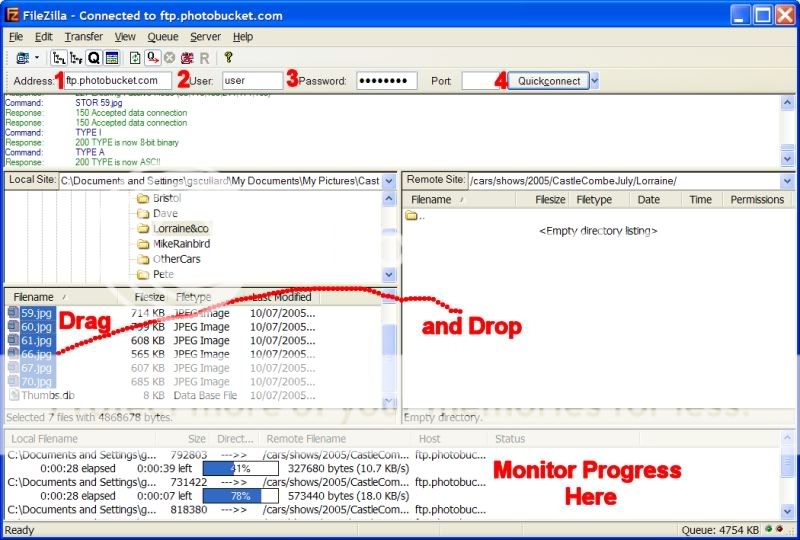
In the Address field, enter ftp.filezilla.com (1)
In the user field, enter your username (2)
In the password field, enter you password (3)
Then click on the “QuickConnect” button (4)
This should log you onto photobucket
In the “Remote Site” window (right hand side), navigate to the album you want to add pictures to.
Note: In the “Remote Site” window, if you right click in the white space, you can create a new directory, this is equivalent to adding an album in photobucket.
In the “Local Site” window (left hand side), navigate to where your pictures are.
Select the pictures you want to upload, and drag-drop them into the relevant album in the right hand window.
Keep going with any other pictures you may have to upload
Filezilla will automatically upload all your pictures to photobucket, you can monitor progress in the window at the bottom of the main Filezilla window.
Et voila, easy multiple image uploads to photobucket.
You can also do it the other way, so you can download loads of images from photobucket at once.
I don’t recomment you rename or delete images on photobucket using Filezilla, although you can physically do it, photobucket gets confused if you do, so you’ll have to use the photobucket web interface to do it.
Here it is in a picture
Enjoy
I am sure this will be familiar to some of you, but others may benefit
Go to www.photobucket.com and create a new album
Download filezilla from here: http://filezilla.sourceforge.net/ , it’s free !!!
Install filezilla
Run filezilla
In the Address field, enter ftp.filezilla.com (1)
In the user field, enter your username (2)
In the password field, enter you password (3)
Then click on the “QuickConnect” button (4)
This should log you onto photobucket
In the “Remote Site” window (right hand side), navigate to the album you want to add pictures to.
Note: In the “Remote Site” window, if you right click in the white space, you can create a new directory, this is equivalent to adding an album in photobucket.
In the “Local Site” window (left hand side), navigate to where your pictures are.
Select the pictures you want to upload, and drag-drop them into the relevant album in the right hand window.
Keep going with any other pictures you may have to upload
Filezilla will automatically upload all your pictures to photobucket, you can monitor progress in the window at the bottom of the main Filezilla window.
Et voila, easy multiple image uploads to photobucket.
You can also do it the other way, so you can download loads of images from photobucket at once.
I don’t recomment you rename or delete images on photobucket using Filezilla, although you can physically do it, photobucket gets confused if you do, so you’ll have to use the photobucket web interface to do it.
Here it is in a picture
Enjoy





Joined: May 2003
Posts: 21,268
Likes: 147
From: The Dark Side of the Moon...
Seems pretty usefull, but rarely do you need to upload more then 20 pics at a time, and photobucket gives you the option to upload upto 20 pics at a time, so I'll stick to that
Thread Starter
0-60 in 17 seconds (eek)
Joined: Apr 2004
Posts: 6,717
Likes: 0
From: Berkshire
Thrush, this is true, but I find clicking on the button twenty times, then finding the right file, etc... a real pain in backside.
FileZilla makes it an absolute doddle, trust me
FileZilla makes it an absolute doddle, trust me
Thread Starter
0-60 in 17 seconds (eek)
Joined: Apr 2004
Posts: 6,717
Likes: 0
From: Berkshire

Also, if you didn't know, in photobucket, select multiple images then click on the "Generate HTML and IMG code" button
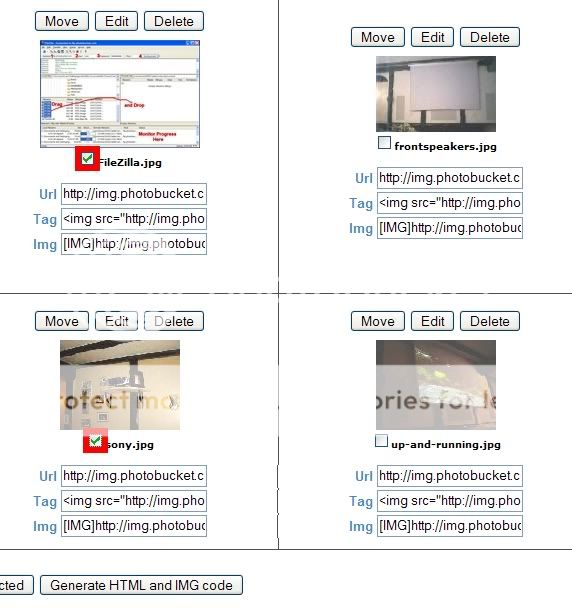
The window that appears contains all the text you need to paste in a post to make your images appear (handy if you want to show several pictures).
You can choose "IMG clickable thumbnails for message boards" for small pictures that people can click on, or, "IMG images for message boards" for full size pics in posts.
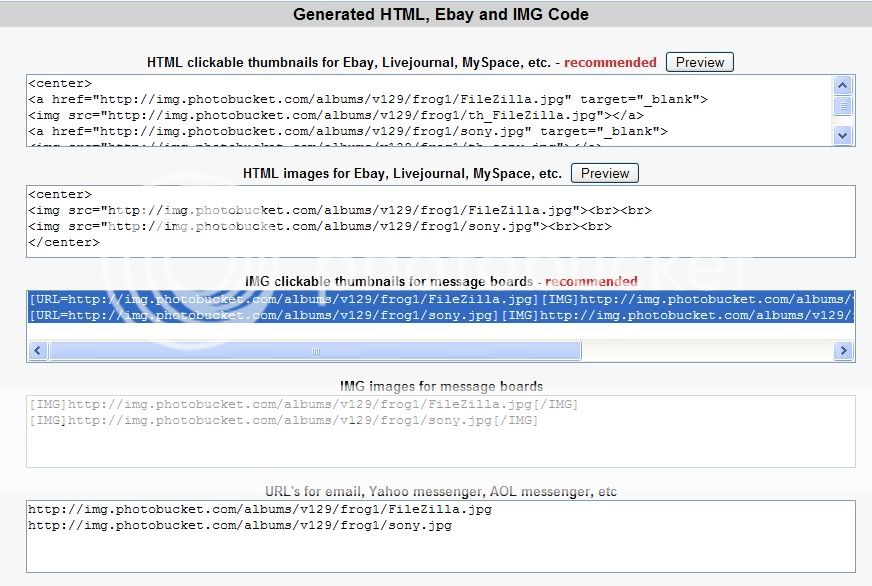
Note: you have other options for eBay and emails too
Trending Topics

Fucking superstar........
Joined: May 2004
Posts: 13,240
Likes: 0
From: Argyll.... It's lonely...
Re: A couple of photobucket tips - handy for multiple images
Originally Posted by frog
Right, had this discussion with St3v3 last night, so thought I'd post it up for all to see.
I am sure this will be familiar to some of you, but others may benefit
Go to www.photobucket.com and create a new album
Download filezilla from here: http://filezilla.sourceforge.net/ , it’s free !!!
Install filezilla
Run filezilla
In the Address field, enter ftp.filezilla.com (1)
In the user field, enter your username (2)
In the password field, enter you password (3)
Then click on the “QuickConnect” button (4)
This should log you onto photobucket
In the “Remote Site” window (right hand side), navigate to the album you want to add pictures to.
Note: In the “Remote Site” window, if you right click in the white space, you can create a new directory, this is equivalent to adding an album in photobucket.
In the “Local Site” window (left hand side), navigate to where your pictures are.
Select the pictures you want to upload, and drag-drop them into the relevant album in the right hand window.
Keep going with any other pictures you may have to upload
Filezilla will automatically upload all your pictures to photobucket, you can monitor progress in the window at the bottom of the main Filezilla window.
Et voila, easy multiple image uploads to photobucket.
You can also do it the other way, so you can download loads of images from photobucket at once.
I don’t recomment you rename or delete images on photobucket using Filezilla, although you can physically do it, photobucket gets confused if you do, so you’ll have to use the photobucket web interface to do it.
Here it is in a picture
Enjoy
I am sure this will be familiar to some of you, but others may benefit
Go to www.photobucket.com and create a new album
Download filezilla from here: http://filezilla.sourceforge.net/ , it’s free !!!
Install filezilla
Run filezilla
In the Address field, enter ftp.filezilla.com (1)
In the user field, enter your username (2)
In the password field, enter you password (3)
Then click on the “QuickConnect” button (4)
This should log you onto photobucket
In the “Remote Site” window (right hand side), navigate to the album you want to add pictures to.
Note: In the “Remote Site” window, if you right click in the white space, you can create a new directory, this is equivalent to adding an album in photobucket.
In the “Local Site” window (left hand side), navigate to where your pictures are.
Select the pictures you want to upload, and drag-drop them into the relevant album in the right hand window.
Keep going with any other pictures you may have to upload
Filezilla will automatically upload all your pictures to photobucket, you can monitor progress in the window at the bottom of the main Filezilla window.
Et voila, easy multiple image uploads to photobucket.
You can also do it the other way, so you can download loads of images from photobucket at once.
I don’t recomment you rename or delete images on photobucket using Filezilla, although you can physically do it, photobucket gets confused if you do, so you’ll have to use the photobucket web interface to do it.
Here it is in a picture
Enjoy
I was following all the way up to 'right'
Then I lost you totally.....


Thread
Thread Starter
Forum
Replies
Last Post
JPA
Ford RS Turbo Parts for Sale
3
Nov 8, 2015 12:26 PM
matman
Ford Rs Parts For Sale (Not cosworth, or Cvh Turbo)
1
Sep 9, 2015 05:45 PM
makaveli96
Pictures, video & Photoshop Forum
12
Aug 15, 2015 09:23 PM
